20
Aug
HP Color LaserJet Pro M254dw, M280nw, M281fdw Refill Guide: Toner Kits & Supplies
HP Color LaserJet Pro M254dw, M280nw, M281fdw Refill Guide: Toner Kits & Supplies
The HP Color LaserJet Pro lineup—specifically the M254dw, M280nw, and M281fdw—remains a popular choice for home offices and small businesses. These workhorses deliver crisp, professional-quality documents and vivid color prints. However, replacing original OEM toner cartridges regularly can quickly exceed the initial cost of the printer itself.
Refilling your own toner cartridges or using high-quality compatible refill supplies provides a reliable way to cut printing costs by up to 70% without sacrificing print quality. This guide covers printer models, toner cartridge specifications, required tools, step-by-step refilling methods, and troubleshooting.
Printer Models Overview
Understanding your specific hardware helps when selecting replacement parts and refill supplies:
- HP Color LaserJet Pro M254dw: A single-function color laser printer featuring auto-duplex printing, fast print speeds, and robust wireless connectivity.
- HP Color LaserJet Pro MFP M280nw: A multi-function printer (MFP) providing print, copy, and scan capabilities with built-in networking.
- HP Color LaserJet Pro MFP M281fdw: The flagship multi-function model offering print, copy, scan, and fax, along with a automatic document feeder (ADF), duplexing, and a color touchscreen interface.
Despite variations in extra features (like scanning or faxing), all three models share the exact same print engine and cartridge architecture.
Toner Cartridge Compatibility & Yield Specs
These printers use four individual toner cartridges: Black, Cyan, Magenta, and Yellow. Cartridge series numbers vary by region (202 series in North America/Oceania, 203 series in Europe), but both follow standard and high-yield designations.
| Color | Standard Cartridge (202A / 203A) | Standard Yield | High-Yield Cartridge (202X / 203X) | High Yield |
| Black | CF500A / CF540A | ~1,400 pages | CF500X / CF540X | ~3,200 pages |
| Cyan | CF501A / CF541A | ~1,300 pages | CF501X / CF541X | ~2,500 pages |
| Magenta | CF502A / CF542A | ~1,300 pages | CF502X / CF542X | ~2,500 pages |
| Yellow | CF503A / CF543A | ~1,300 pages | CF503X / CF543X | ~2,500 pages |
Note: Both standard (A) and high-yield (X) cartridges fit identically into the printer carriage.
Essential Tools and Refill Supplies
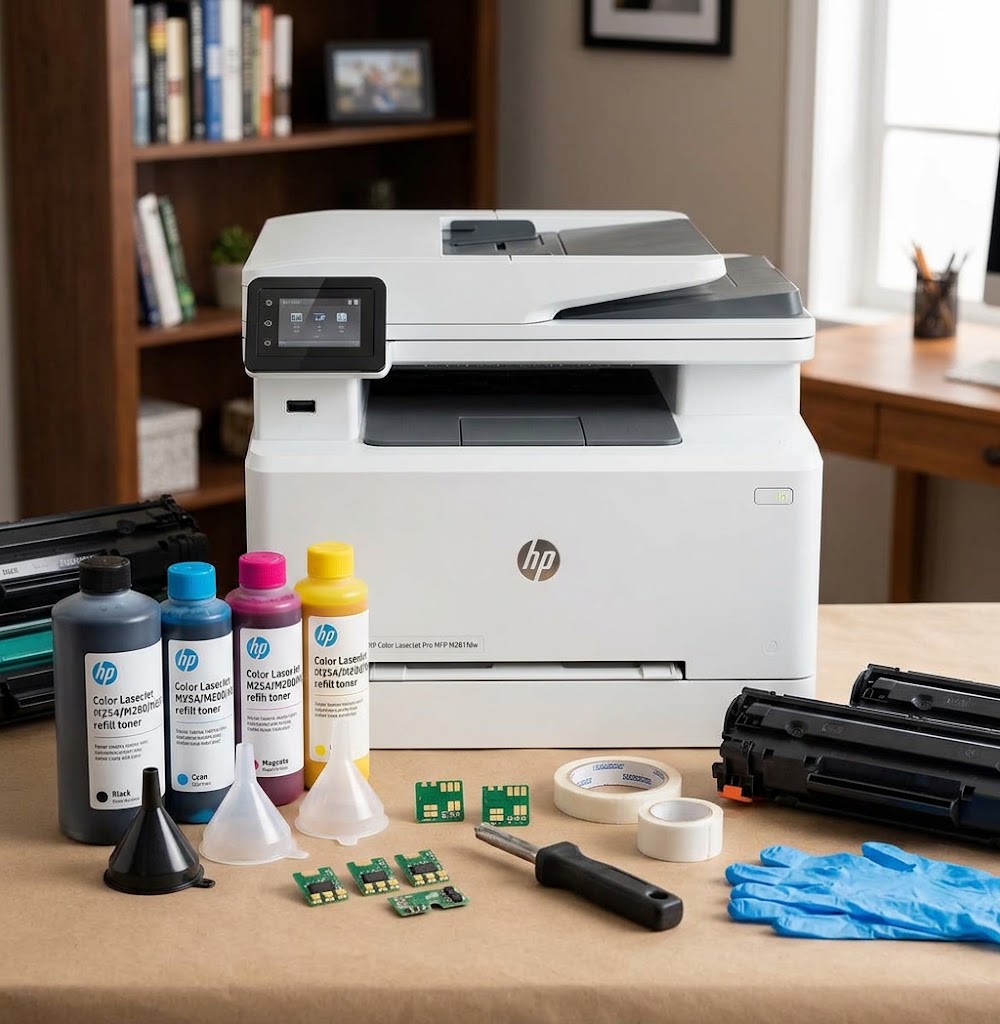
Refilling toner cartridges requires a few specialized tools to ensure clean, leak-free operation:
- Model-Specific Chemical Toner Powder: Never use generic or universal toner. HP Color LaserJet printers require micro-fine, polyester-based toner formulated specifically for high-temperature melting units.
- Melting Tool / Hole-Making Tool: Original cartridges do not have built-in refill ports. A thermal hole-piercing tool allows you to create a clean entry point without producing plastic shavings inside the reservoir.
- Replacement Smart Chips: Smart chips monitor toner levels. While optional on some firmware versions, replacing the chip resets the printer’s internal toner gauge.
- Funnel Spouts & Sealing Tape: Pouring spouts allow precise filling, and heavy-duty aluminum tape seals the entry hole to prevent leakage.
- Safety Gear: Nitrile gloves and a dust mask or respirator prevent inhalation or contact with microscopic toner dust.
Step-by-Step Guide: Refilling Your HP Cartridges
Step 1: Create the Refill Port
Identify the toner storage chamber on the side of the cartridge frame. Heat your hole-piercing tool and press down gently to melt a circular hole into the plastic casing. Clean away any loose exterior debris.
Step 2: Clear Residual Powder
Empty any leftover toner out of the hole into a waste bag. Mixing old residual powder with new toner can lead to faint printing, banding, or background shading.
Step 3: Refill with New Toner
Attach the funnel spout to your specific toner bottle. Shake the bottle thoroughly to loosen the powder, then slowly pour the designated amount into the cartridge.
Step 4: Seal the Hole
Wipe the plastic around the hole with an isopropyl alcohol wipe to remove fine dust. Apply a strip of high-tack aluminum sealing tape smoothly over the hole to form an airtight seal.
Step 5: Replace the Smart Chip
Locate the existing chip on the side of the cartridge. Pry away the small plastic retaining tab holding it in place, slide out the old chip, and insert the new replacement chip in the same orientation.
Addressing HP Firmware & Chip Warnings
HP frequently releases firmware updates via Wi-Fi that attempt to block third-party chips or refilled cartridges.
- Disable Automatic Firmware Updates: Navigate to your printer’s control panel (Setup > Service > Laserjet Update) and set Allow Updates to No.
- Printing with Old Chips: If you do not replace the smart chip, the printer may display a “Toner Low” or “Cartridge Empty” prompt. In most cases, you can acknowledge the prompt and continue printing until physical print quality declines.
Key Takeaways for Maintenance
- Refill OEM cartridges 2 to 3 times maximum before replacing the physical unit, as internal rollers wear over time.
- Keep extra sealing tape and replacement chips on hand to prevent unexpected downtime.
- Always turn off automatic firmware updates to preserve compatibility with aftermarket supplies.
For a visual step-by-step walk-through on how to swap out chip components, you can watch How to Replace the Chip of HP 202A CF500A Toner Cartridge. This short video demonstrates the exact mechanical steps for swapping the smart chip on your HP cartridges.